Free Background Removal Tool Online: Batch Prep for Amazon, Shopee, and TikTok Shop
Need uniform product photos fast? Batch-remove backgrounds, keep edges clean, and export Amazon, Shopee, and TikTok sizes with Pixflux.AI in three steps.
 Richard SullivanJanuary 23, 2026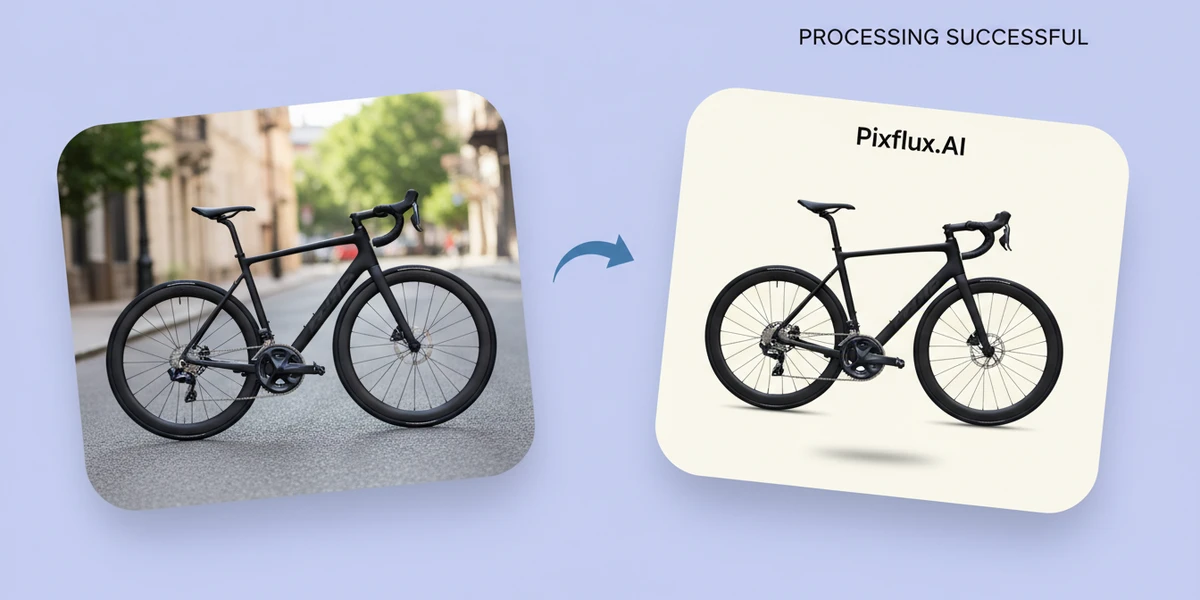
Free Background Removal Tool Online: Batch Prep for Amazon, Shopee, and TikTok Shop
If you sell across Amazon, Shopee, or TikTok Shop, your product photos have to do two things at once: meet platform rules and look perfectly consistent as a catalog. That means clean white backgrounds for main images, edges that don’t flicker from SKU to SKU, and thumbnails that “scan” well in feed and search. Doing this by hand across dozens—or hundreds—of products is slow, repetitive, and expensive to outsource at scale.
A practical path is to standardize your workflow around a free background removal tool online that can handle batches, keep edges consistent, and get you channel‑ready outputs fast. Tools like Pixflux.AI help you use a free background removal tool online to strip busy backgrounds, maintain soft shadows, and prep image sets in minutes, not days.
(See image: Pixflux.AI interface showing the three-step flow: upload → AI process → download for multiple images)
The seller-first goal: uniform, channel-ready images across marketplaces
Think seller-first: the point isn’t just to “cut out” backgrounds; it’s to build a repeatable pipeline so every product family lands on Amazon, Shopee, and TikTok Shop with:
- Uniform background treatment (pure white for main images, on-brand lifestyle backgrounds for secondary images)
- Consistent edges and natural shadows across a collection
- Predictable framing so thumbnails don’t jump around
- Fast batch prep to keep up with short-video commerce cycles and seasonal refreshes
AI matting has improved edge fidelity for hair, glass, and soft shadows. Combined with batch workflows, you can now prepare entire drops in one sitting and confidently scale to multiple channels.
Marketplace policies decoded: the basics that matter
Each marketplace has its own detailed policy page that can change over time, but the spirit is consistent:
- Main images favor a clean, pure white background (no props, no text overlays, no watermarks)
- The product should fill most of the frame without being cropped off
- Minimum image sizes ensure zoom works well on desktop and mobile
- Secondary images can be lifestyle or contextual, as long as they don’t mislead
Always check the current rules in Seller Central (Amazon), Seller Education (Shopee), and TikTok Shop’s policies for your region. This article focuses on getting you compliant faster, not on reproducing every platform’s legal language.
What a free background removal tool online can and cannot do
What it can do:
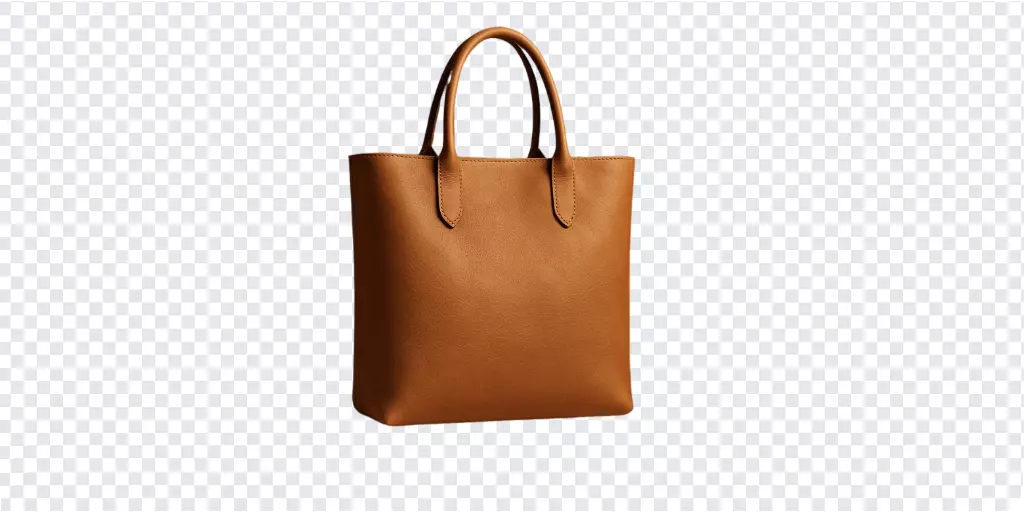
- Remove busy or distracting backgrounds so your main images meet “white background” policies
- Modify backgrounds to clean white or brand-neutral colors for variant shots
- Generate simple, on-brand backgrounds for secondary or lifestyle images (where allowed)
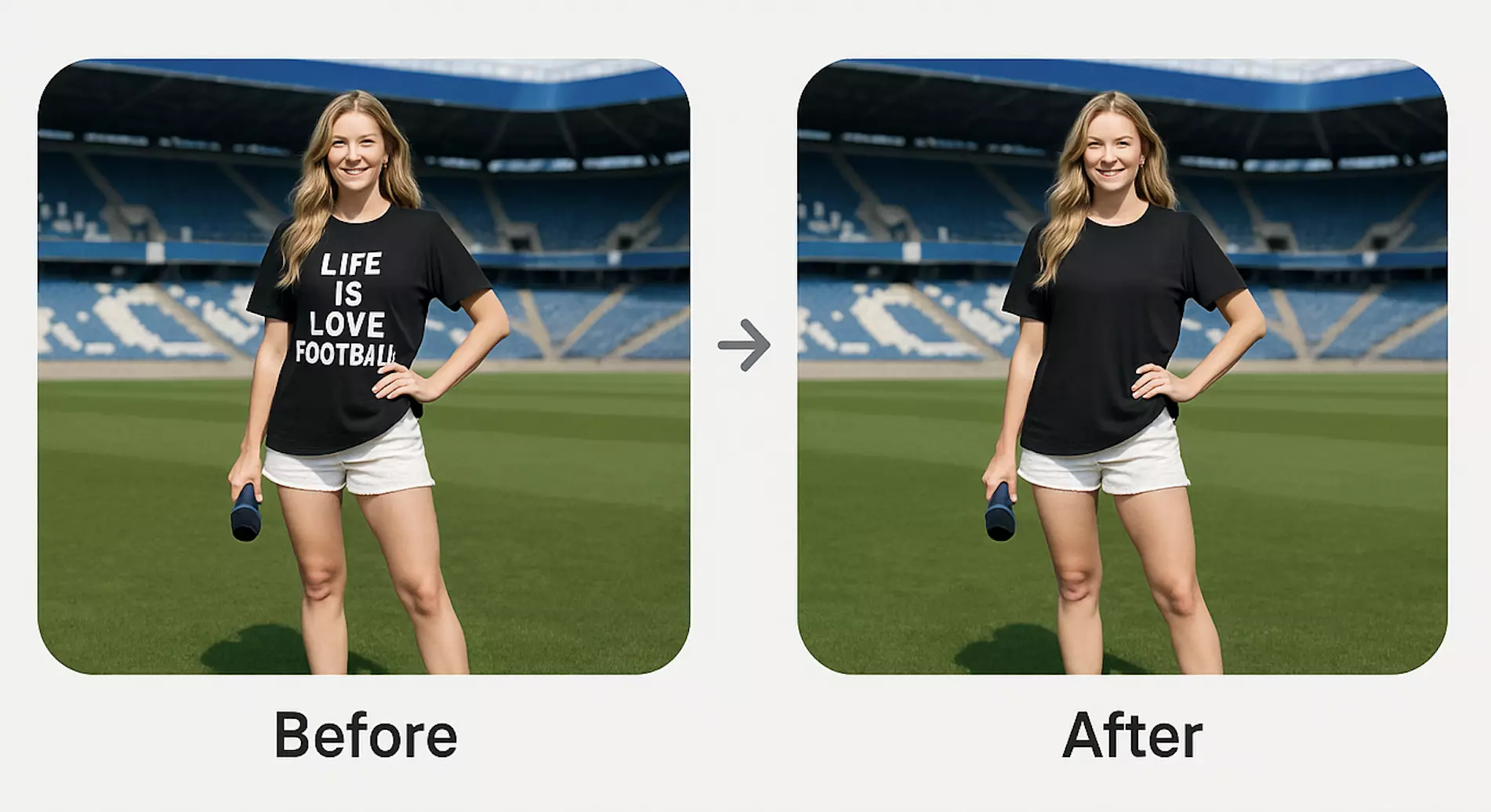
- Remove watermarks or logos when you own the rights and it’s compliant with platform rules
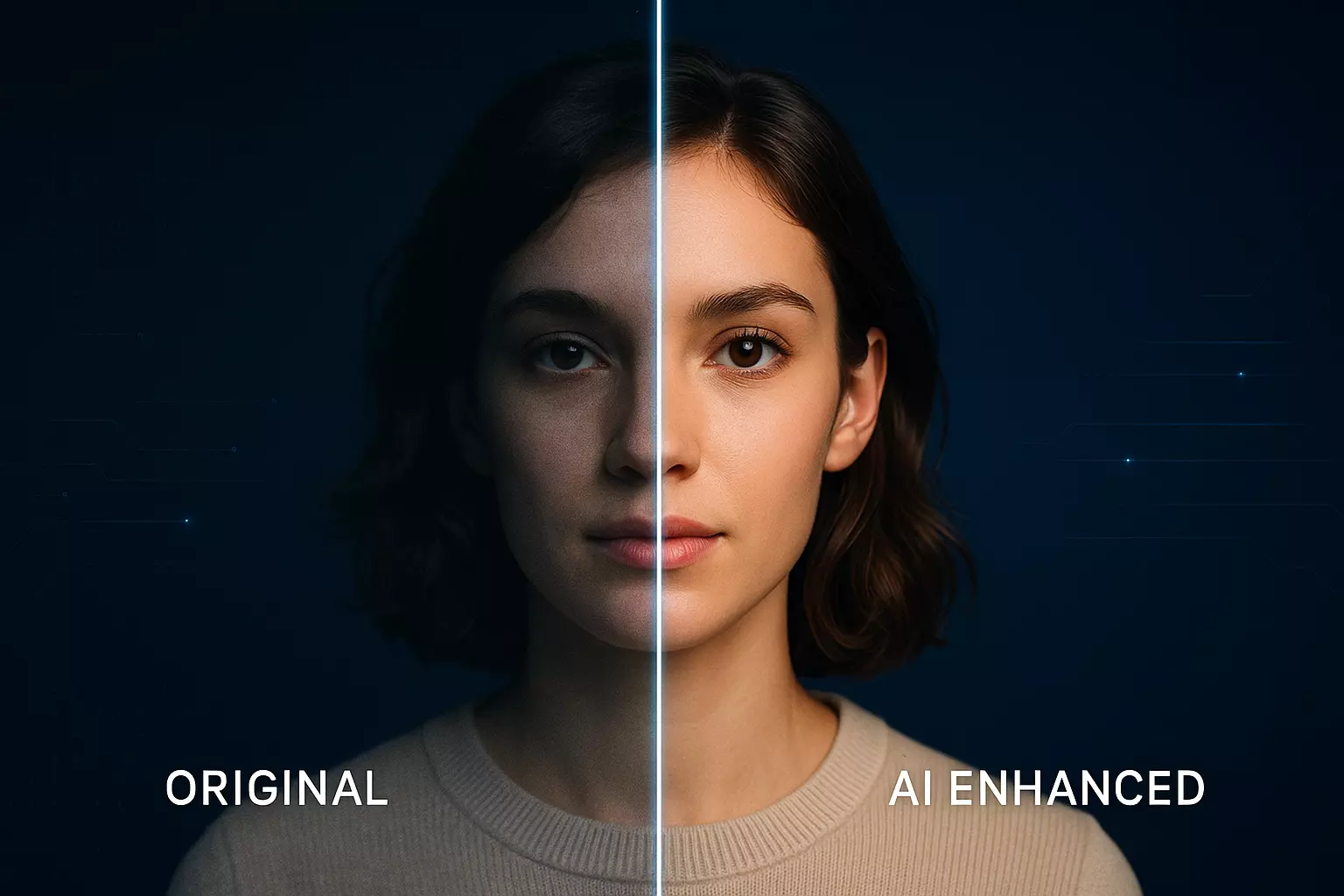
- Enhance images with clarity and contrast so details pop in thumbnails
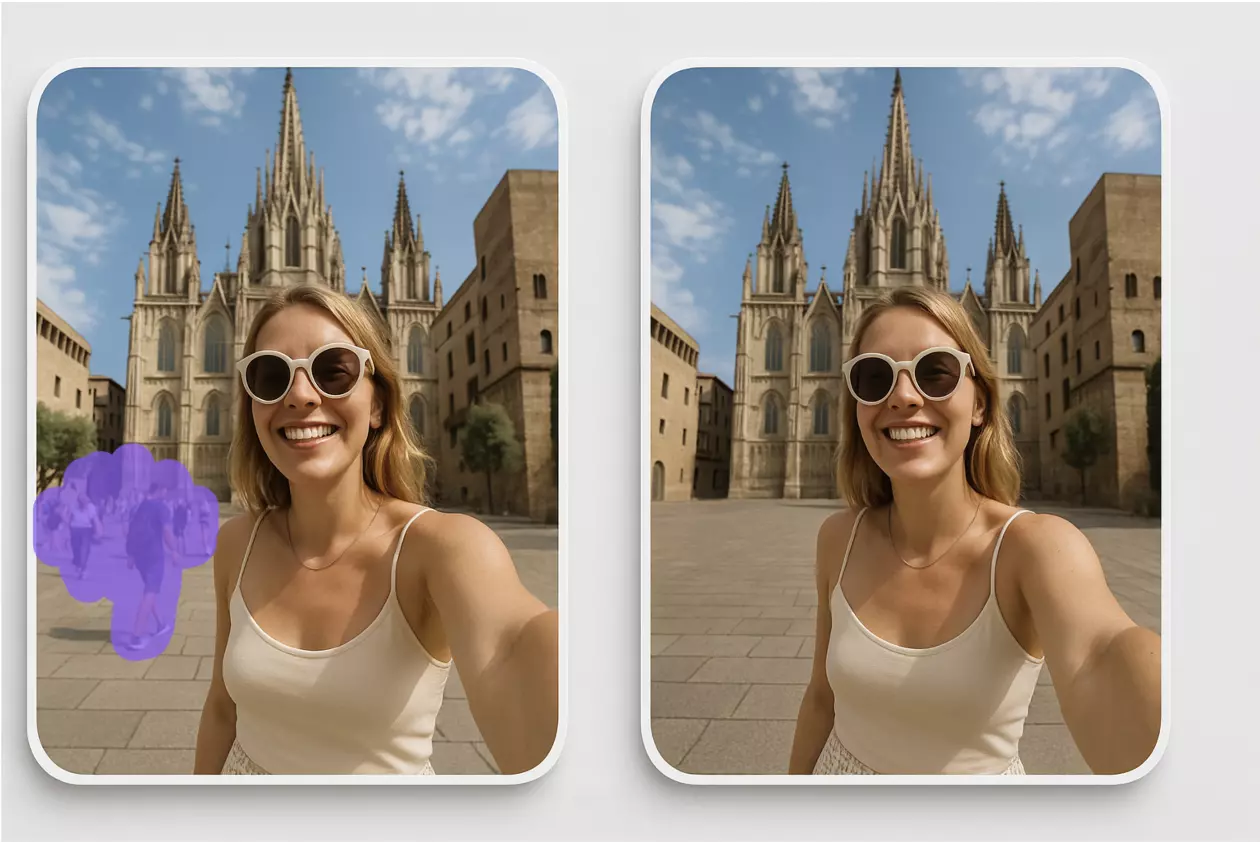
- Remove small distractions (cables, passerby, dust) that crept into the frame
- Process images in batches, so an entire category is ready together
What it can’t replace:
- Good photography (angles, lighting, color accuracy)
- Art direction for complex campaigns
- Studio retouching for high-end cosmetics, jewelry, or reflective surfaces when pixel-perfect control is needed
Compliance note: Only remove watermarks or brand marks from images you own or are licensed to edit. Don’t use background or watermark removal to circumvent platform policies or intellectual property rights.
How to evaluate an online background remover for product photos
Edge quality is everything. Before you commit a catalog to any online background remover, run a small test set that includes:
- Hair, fur, or fringes
- Translucent and glossy materials (glass, polished metal, acrylic)
- Soft shadows under shoes, bottles, or gadgets
- Complex contours (handles, spokes, jewelry chains)
You want edges that are crisp without jaggedness, soft shadows retained (not nuked), and no halos around the cutout. Consistency across a batch matters even more than a single perfect result—your category page should look seamless.
(See image: Before-and-after of the same product—busy background replaced with pure white, edges crisp, natural shadow retained)
Online tools vs desktop apps and outsourcing
- Time cost: A browser-based, AI-driven workflow removes the need to open heavy files or run complex actions. For routine catalog prep, it’s faster than manual masking in desktop apps.
- Learning curve: No need to master pen tools, channels, or layer math. Most online tools provide a guided flow anyone on the team can use.
- Batch handling: Bulk upload and one-click processing means entire drops move together. That’s harder to standardize with individual PSD files.
- Quality trade-offs: For 90% of SKUs, AI matting is now production-grade. For the remaining 10% (ultra-reflective or intricate items), you can still escalate to manual retouching.
- Flexibility across teams: A link and a browser are often all non-design teammates need to prep images consistently.
How to remove background online in batches with Pixflux.AI
Here’s the quickest three-step batch flow with Pixflux.AI’s online background remover:
1) Upload your product images Drag and drop a folder or select multiple files at once to queue a batch.
2) Let the AI process Pixflux.AI removes backgrounds and preserves soft shadows automatically. For main images, choose a clean white background before downloading.
3) Download your results Review thumbnails, make spot checks, then download the batch. Keep a simple file structure by product family or channel.
If you prefer a little more control, use this five-step approach:
1) Open Pixflux.AI Go to the tool page to start a new batch. 2) Upload your original images Group similar SKUs together for consistent results. 3) Pick the right tool and run AI processing Use background removal for main images; consider background change or generation for secondary images. 4) Preview and fine‑tune Check edges at 100% zoom and verify shadows look natural; re-run a single image if needed. 5) Download the processed set Store by collection and channel to keep your pipeline organized.
Ready to try it now? Open the Pixflux.AI online background remover and run a small test set of your top SKUs.
(See image: In Pixflux.AI, the upload area with multiple images queued, progress states, and a download button for the batch)
Export checklist: white backgrounds and platform-ready consistency
The goal is uniform output, not just isolated good results. Use this checklist as you finalize batches:
- White background main images: Set background to pure white in Pixflux.AI before downloading main images. Retain soft shadows where appropriate for realistic grounding.
- Framing discipline: Keep similar framing across a product family so thumbnails align. Use consistent headroom and footprint.
- File naming convention: Adopt a predictable pattern (e.g., brand_sku_color_view01.jpg) so your assets are easy to audit. Keep channel variants in separate folders.
- Size and aspect ratio: Follow each marketplace’s latest guidance. If you need specific dimensions, apply them in your standard resizing step before or after AI processing.
- Color checks: Ensure whites are neutral and product colors remain true; avoid color casts that make whites look gray or products look off-brand.
Note: This checklist focuses on uniformity. You can execute the background decisions in Pixflux.AI, then complete any additional resizing or compression in your existing image pipeline.
Advanced edits: change or generate backgrounds for lifestyle shots
Main images are typically pure white on marketplaces. For secondary images (A+ content, carousel shots, PDP galleries), you can use Pixflux.AI to:
- Replace backgrounds with clean, on-brand colors that complement your palette
- Generate simple lifestyle scenes (e.g., subtle studio gradients) that keep the focus on the product
- Remove unwanted objects or distractions from quick lifestyle captures to stay on brief
- Enhance clarity so texture and details read well on mobile
Always respect marketplace rules: keep main images policy-safe and reserve lifestyle or generated backgrounds for secondary images where creative context is allowed.
Field test: batch run on 50 SKUs—what you can expect
In a typical run with 50 mixed SKUs (apparel, beauty, electronics accessories):
- Throughput: A full batch generally completes in the time it takes to do a quick review pass—think minutes instead of hours, depending on file size and network speed.
- Edge consistency: Most items will have clean, uniform edges out of the gate. For tricky materials (glass, high-gloss metals), you might spend a few extra seconds per image in preview to confirm shadows and edge transitions look natural.
- Rework rate: Expect a small subset to benefit from a second pass or minor fine‑tuning. Grouping similar products in a single batch often reduces rework.
These figures vary by lighting, image quality, and the complexity of your catalog. The bigger takeaway: batch processing compresses the calendar time to go live across channels.
QA workflow: simple checks before publishing
A fast QA pass helps you catch small issues before they become listing churn:
- Visual sweep: Scan thumbnails for obvious inconsistencies in brightness or framing.
- Edge audit at 100%: Check hairlines, glass rims, and stitching; look for halos or jaggedness.
- Shadow integrity: Ensure soft shadows look natural and aren’t clipped.
- Consistency metrics: For a family of products, compare 2–3 representative SKUs side‑by‑side and confirm background and edge treatment match.
- Compliance review: Confirm main images are on pure white and free from text, logos, stickers, or watermarks.
Troubleshooting common artifacts
- Halos around edges: Re-run the image or lightly adjust the cutout in preview. Shooting against a contrasting backdrop in your next photo session also helps reduce halos.
- Jagged edges: Check source resolution; very small or highly compressed originals can produce stair-step edges. Use higher-res inputs for better results.
- Color cast on “white”: If whites look gray or warm, neutralize lighting in capture or correct color balance before background removal.
- Reflective products (glass, chrome): Keep some soft shadow and reflection to ground the object; completely “floating” glass can look fake. Verify edge transitions carefully.
- Busy backgrounds bleeding through: If complex patterns confuse the AI, a quick second pass usually fixes it. For future shoots, simplify the set or increase subject-background contrast.
AI tools vs traditional methods: what changes in the day-to-day
- Speed: Online AI cuts cycle times from hours per product to minutes per batch. You approve results instead of creating them from scratch.
- Learning: New team members can contribute immediately. No expert-only bottlenecks.
- Batch efficiency: Upload once, process once, download once—no file-by-file routine.
- Quality-at-scale: Consistent edges and shadows across a set improve category page cohesion, boosting perceived brand quality.
Pixflux.AI is designed for this day-to-day rhythm: quick uploads, fast AI background removal, optional background changes or generation for secondary images, and simple batch downloads. It’s a practical middle ground between heavyweight retouching and “good enough” shortcuts.
FAQ: free background removal, batch processing, and compliance
Is a free background removal tool online good enough for marketplace main images?
Yes, for most products it delivers clean, policy-safe results quickly. Modern AI matting handles edges and soft shadows well, which is exactly what marketplace main images need. Always do a quick QA pass to confirm pure white backgrounds and consistent framing before publishing.
Can I remove background online free for a whole catalog at once?
Yes, you can process images in batches to speed up catalog readiness. Batch upload and one-click processing compress turnaround time from days to minutes. Group similar SKUs together for the most consistent output and spot-check a few images in each set.
Will it work on hair, fur, glass, or glossy packaging?
Usually yes, and results have improved a lot for tricky edges. Test a small sample with complex materials first. Review at 100% zoom for halos or jagged edges, and keep soft shadows to avoid a “cutout sticker” look.
Is it safe to use an online background remover with product photos?
Yes, provided you trust the tool and follow good asset management practices. Work with high-quality originals and keep organized backups. Only process images you own or are licensed to edit, and do not upload sensitive content that violates platform or legal guidelines.
Can I use watermark removal on supplier images?
Only if you have the legal right to do so. Watermark removal should never be used to misrepresent ownership or bypass platform rules. When in doubt, obtain proper licensing or request clean assets from your supplier.
How do I keep consistency across Amazon, Shopee, and TikTok Shop?
Standardize your background decisions, framing, and naming conventions. Use AI to remove or change backgrounds consistently, keep main images pure white, and adopt a simple file naming and folder structure so teams can find channel-ready assets quickly.
What if some images still need manual retouching?
Escalate only the tricky edge cases and keep the rest in the fast lane. Use AI to clear 90% of the workload, then send the remaining 10%—like ultra-reflective or intricate items—for manual attention. This hybrid approach preserves quality without slowing launches.
Conclusion and next steps
Uniform, channel-ready product images are no longer a multi-day bottleneck. With AI matting improving edge fidelity—and marketplaces favoring clean white main images—you can build a seller-first workflow that scales. Batch background removal accelerates catalog prep, keeps edge treatments consistent, and supports rapid refresh cycles driven by short-video commerce.
Start with a pilot of your top SKUs and a simple QA checklist. If the results look good, roll the approach out to entire product families and channels. To try it right now, open Pixflux.AI and remove background online free in batches to get clean, consistent main images in minutes.