Best Practices for Using an Image Background Remover on Product Photos
Prep better shots, remove backgrounds cleanly, and export marketplace-ready images—plus batch and QC tips using Pixflux.AI.
 Richard SullivanDecember 1, 2025
Best Practices for Using an Image Background Remover on Product Photos
If your product photos aren’t getting approved or clicked on, background inconsistencies are often to blame. Marketplaces like Amazon and Shopify now enforce stricter main-image rules: clean white backgrounds, correct sizing, and no text or watermarks. At the same time, catalogs are growing and launch cycles are faster, leaving little room for manual retouching.
A modern workflow uses an AI-powered image background remover to standardize your catalog at speed—without sacrificing edge quality. If you’re ready to standardize main images and lifestyle variants, try an image background remover to streamline the process from upload to export.
(Reference image suggestion: Pixflux.AI interface showing the three-step flow: upload → AI process → download)
Why background removal matters for marketplace-ready product photos
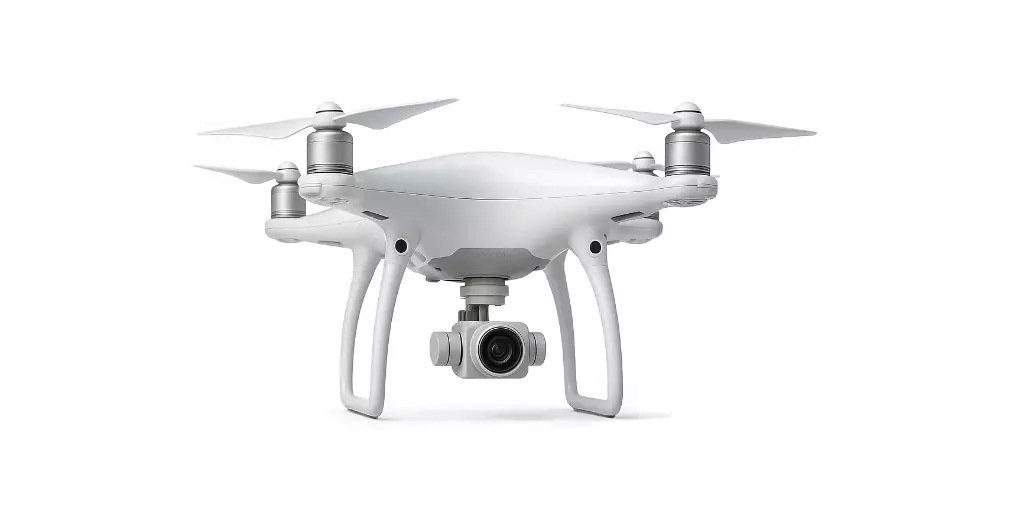
- Compliance: Amazon’s main image policy requires a pure white background (RGB 255, 255, 255), no text or logos, and the product filling roughly 85% of the frame. Shopify favors high-resolution, clean product images that load fast and look consistent across themes.
- Conversion: A uniform backdrop directs attention to the product and improves perceived quality, which can lift click-through and conversion.
- Scalability: When background removal is consistent, teams can publish seasonal updates and new SKUs without bottlenecks.
With marketplaces tightening rules in 2025, building a repeatable background workflow is now essential, not optional.
Input quality before the image background remover: lighting, resolution, angles
Background removal starts before you click “upload.” The better your source, the cleaner the cutout:
- Lighting: Use soft, diffused light to minimize harsh shadows and edge noise. Two softboxes at 45° plus a top fill often deliver smooth results.
- Resolution: Shoot at least 2000–3000 px on the longest edge. This preserves hairlines, stitching, and reflective edges for cleaner extractions.
- Angles: Keep the hero angle consistent across SKUs. For small items, a simple top-down or 3/4 angle with a fixed camera height helps align frames.
- Exposure: Avoid clipping—overexposed highlights on glossy surfaces create halos after background removal.
- Color profile: Shoot or convert to sRGB for web consistency.
Shooting setup to simplify clean edges: surfaces, stands, and diffusion
- Surface: Matte surfaces reduce glare and color cast. For smaller products, use acrylic or foam core; for apparel, use steamers and lint rollers to smooth fabric.
- Stands and wires: Invisible stands or thin monofilament can prop items like bags or jewelry. They’re easy to remove later with an AI object remover.
- Diffusion: A scrim or diffusion umbrella softens edge contrast and helps the model find the true product boundary.
- Distance: Separate the product from the backdrop to reduce cast shadows and color bleeding.
Choosing an image background remover: what to look for
Not all tools are equal. When evaluating options, focus on:
- Edge accuracy on fine details: Hair, fur, lace, and frayed edges should look natural without cut-off strands.
- Reflective and translucent materials: Look for clean separation on glass, glossy plastics, and chrome—minimal halos, preserved reflections.
- Batch handling and consistency: Can you process many files while preserving the same look across SKUs?
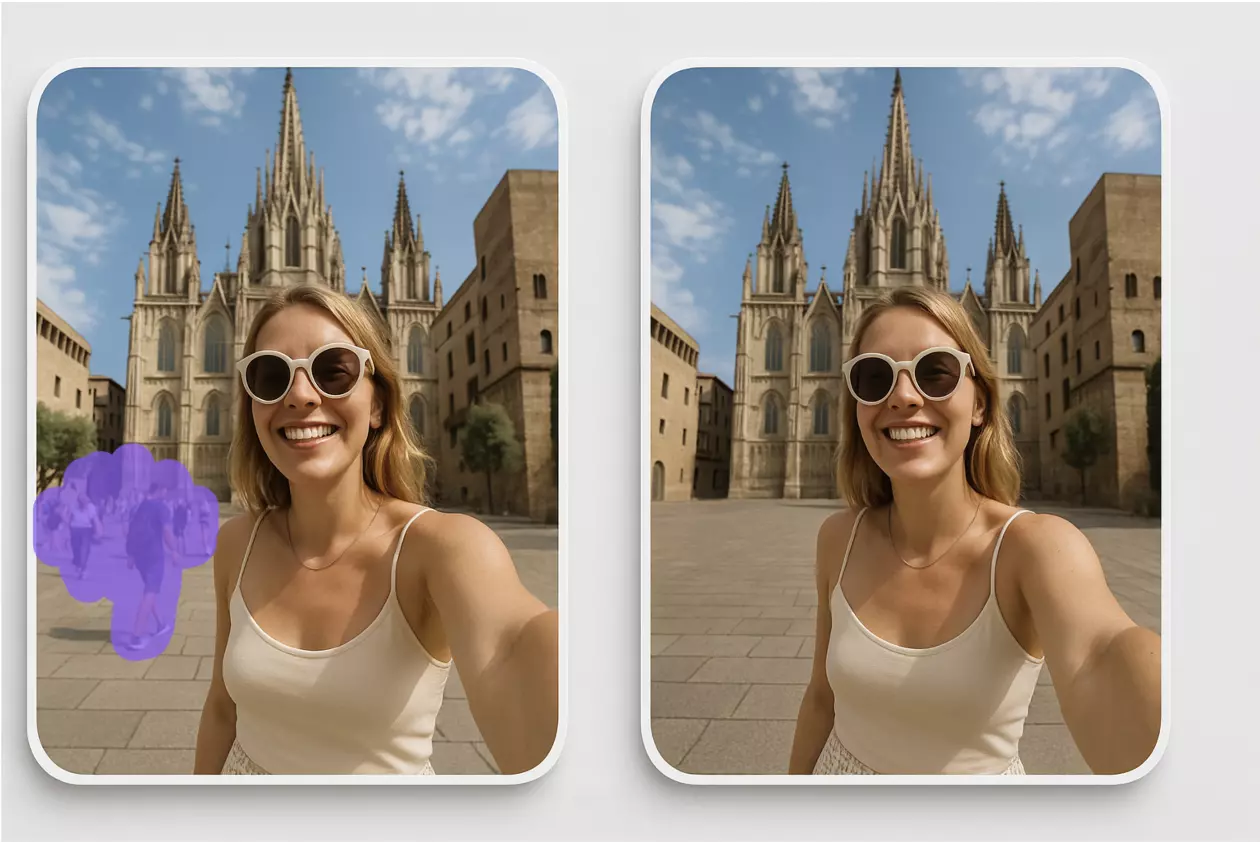
- Cleanup tools: Object and dust removal, fringe reduction, and simple color background swaps.
- Speed and simplicity: A short learning curve so non-designers can handle updates.
Hands-on with Pixflux.AI: a quick 3-step workflow
Pixflux.AI keeps the process simple for teams that need fast, consistent results. If you’re evaluating an AI background remover, here’s a straightforward way to test your images:
- Upload your original product photo.
- Let the AI remove or modify the background. Optionally enhance clarity and contrast to reveal stitching or labels.
- Download the processed image, ready for export to marketplace specs.
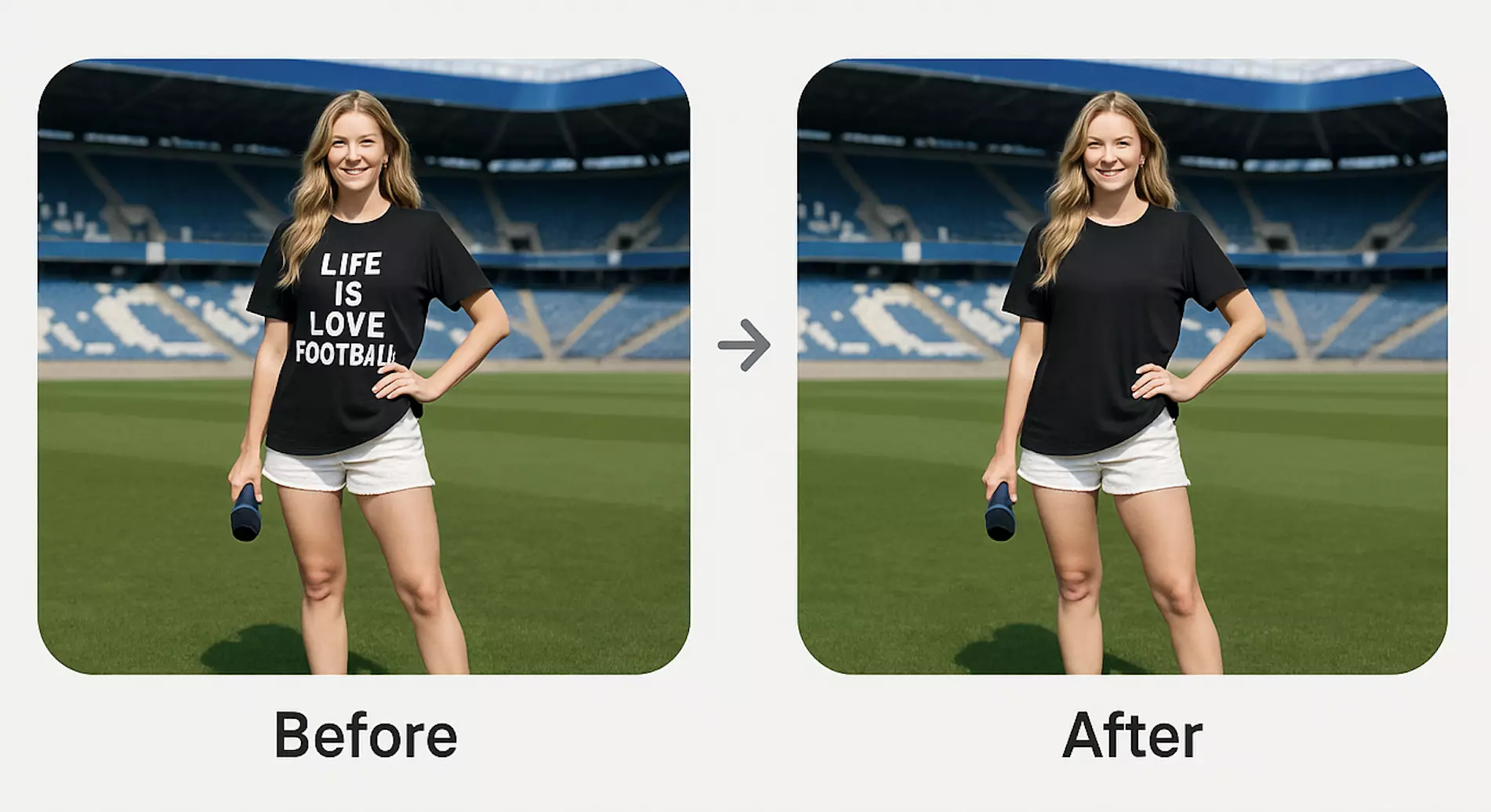
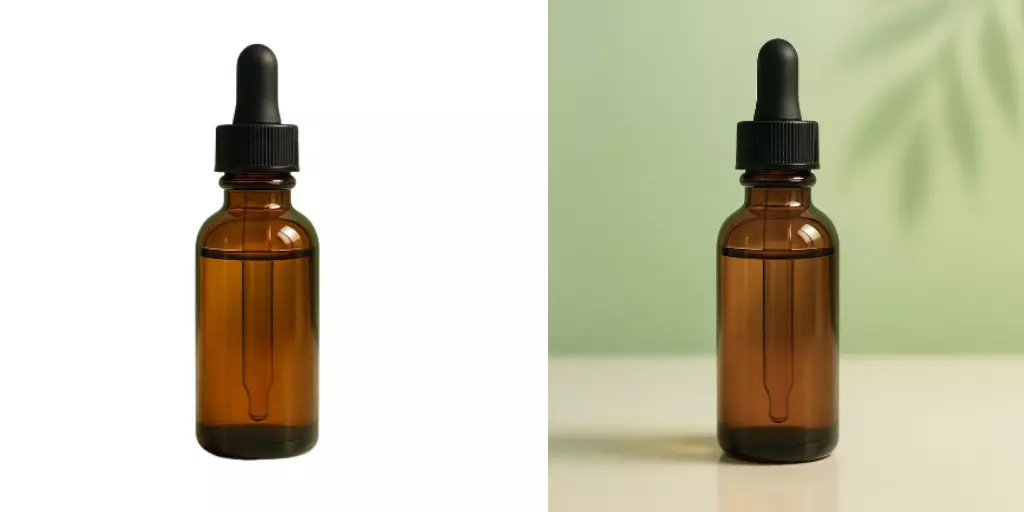
(Reference image suggestion: Before/after of the same product—background removed and watermark removed using Pixflux.AI)
Pro tip for glossy items: After removal, zoom to 200–300% to check for halos along bottle edges or jewelry, then use fringe cleanup to soften transitions.
Export settings for Amazon and Shopify
Match your marketplace targets to avoid rework:
- Amazon main image:
- Background: Pure white (RGB 255, 255, 255), no text, logos, or props not included in the purchase.
- Size: At least 1000 px on the longest side to enable zoom; 1600–3000 px recommended for crisp detail.
- Framing: Primary product should fill approximately 85% of the frame.
- Format: JPEG (sRGB) is preferred for balance of quality and file size.
- Compression: Aim for 80–90 quality; keep files efficient while preserving edges and labels.
- Shopify product image:
- Size: 2048 × 2048 px square is a safe default for zoom and theme consistency.
- Color profile: sRGB.
- Format: JPEG for photos; PNG if you need transparency for design layers.
- Compression: Target 80–90 quality; visually confirm no banding on gradients.
Background choices: pure white, color swaps, and AI-generated scenes
- Pure white for main images: Use strict white to comply with Amazon and to keep grids consistent.
- Neutral color swaps for brand stores: Light gray or off-white can feel premium in brand pages and PDP modules.
- AI-generated lifestyle scenes: Great for secondary images and ads. Keep shadows and scale realistic. Avoid elements that imply claims you can’t substantiate (e.g., medical settings for non-medical products).
Pixflux.AI can switch a busy studio shot to pure white, or generate on-brand lifestyle backdrops for secondary images—without touching your main-image compliance.
(Reference image suggestion: Zoomed-in edge comparison illustrating fringe cleanup and halo reduction on a glossy bottle)
Quality control and cleanup: fringe checks, halos, and small distractions
- Zoom-level QC: Inspect edges at 200–300% on high-contrast borders. Look for gray fringing or jagged edges.
- Halo reduction: Use edge-softening tools to blend reflective surfaces naturally without blurring the product.
- Object cleanup: Remove dust, scuffs, stand wires, and stray straps. Pixflux.AI’s object remover helps clear these distractions quickly.
- Watermarks and logos: If you need to remove legacy watermarks from assets you own, use an AI watermark remover. Only edit material you have rights to use. Removing watermarks from third-party images without permission can violate copyright and platform policies.
Batch processing for large catalogs: naming, versions, and throughput tips
- Batching: Group similar materials (e.g., glassware vs. textiles) to tune settings once and apply them across similar SKUs.
- File naming: Use a SKU-first pattern (SKU_view_color_v1.jpg) to keep variants together and avoid accidental overwrites.
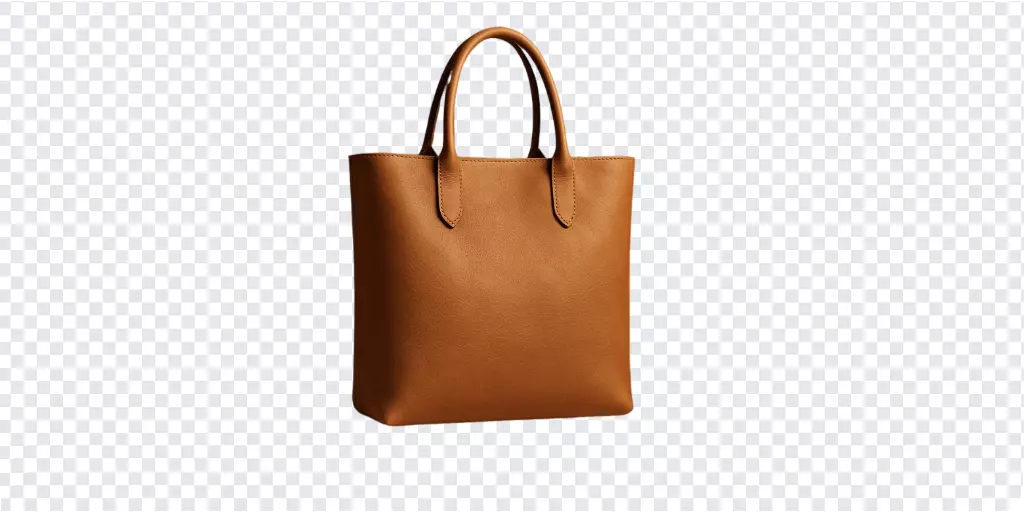
- Versioning: Keep an original, a cutout (transparent), and a marketplace-ready export. This lets you quickly create seasonal or promotional variants later.
- Throughput: Schedule batches by complexity—simple matte products first, then glossy or translucent items. Pixflux.AI supports batch uploads so your team can process collections in one run.
Case notes: apparel vs. glossy items
- Apparel: Fibers and edges around hems benefit from higher-resolution inputs and gentle edge smoothing. Lint or loose threads should be removed with object cleanup to avoid fuzzy outlines.
- Glossy and translucent products: Expect more time in the zoom check. Prioritize halo reduction around high-contrast edges and ensure internal reflections don’t look cut out unnaturally.
- Jewelry: Balance sharpening with edge smoothing—micro-contrast helps stones pop but can exaggerate halos if overdone.
A 5-step advanced workflow with Pixflux.AI (for teams)
When you need more control and consistency across categories:
- Open the Pixflux.AI tool page.
- Upload your original photo set for the SKU or category.
- Choose the background removal tool; apply optional enhancements or color swaps as needed.
- Preview and micro-adjust edges, remove dust or stand wires, and confirm shadow realism.
- Download your final images in marketplace-ready specs.
This process standardizes results across teams and reduces back-and-forth with design.
AI tools vs. traditional methods
- Time cost:
- AI online tools: Seconds per image; minutes for batches.
- Traditional software: Manual pen tool selections and masks can take 10–20 minutes per image, longer for hair or glass.
- Learning curve:
- AI online tools: Minimal training; non-designers can operate repeatable flows.
- Traditional software: Requires advanced skills in masking, feathering, and path refinement.
- Batch efficiency:
- AI online tools: Upload once, process many, keep looks consistent across SKUs.
- Outsourcing: Turnaround varies; iteration cycles can slow launches.
- Cross-team adaptability:
- AI online tools: Easy to share steps and presets internally.
- Traditional: Settings and techniques live with specialists, creating bottlenecks.
Pixflux.AI fits the “fast, repeatable, good-enough for marketplaces” sweet spot, while still providing quality control for tricky edges and reflective surfaces.
Practical checklist before publishing
- Background: Pure white for main images; consistent across the catalog.
- Edges: No halos or gray fringing; hair/fabric look natural.
- Distractions: Dust, straps, wires removed; shadows look realistic.
- Sizing: Amazon 1600–3000 px longest side; Shopify 2048 × 2048 px.
- Format: JPEG (sRGB), quality 80–90; PNG only if transparency is needed.
- Compliance: No watermarks, logos, or promotional text in main images.
Conclusion and next steps
Clean, compliant, and consistent product photos are now table stakes—and the fastest way to get there is with a modern, AI-driven workflow. Pixflux.AI helps you go from raw shot to marketplace-ready image in just a few steps, while preserving edge detail and offering batch throughput for large catalogs. If you’re ready to remove background from product photos and ship listings faster, give Pixflux.AI a try today.